
Password and connected computers
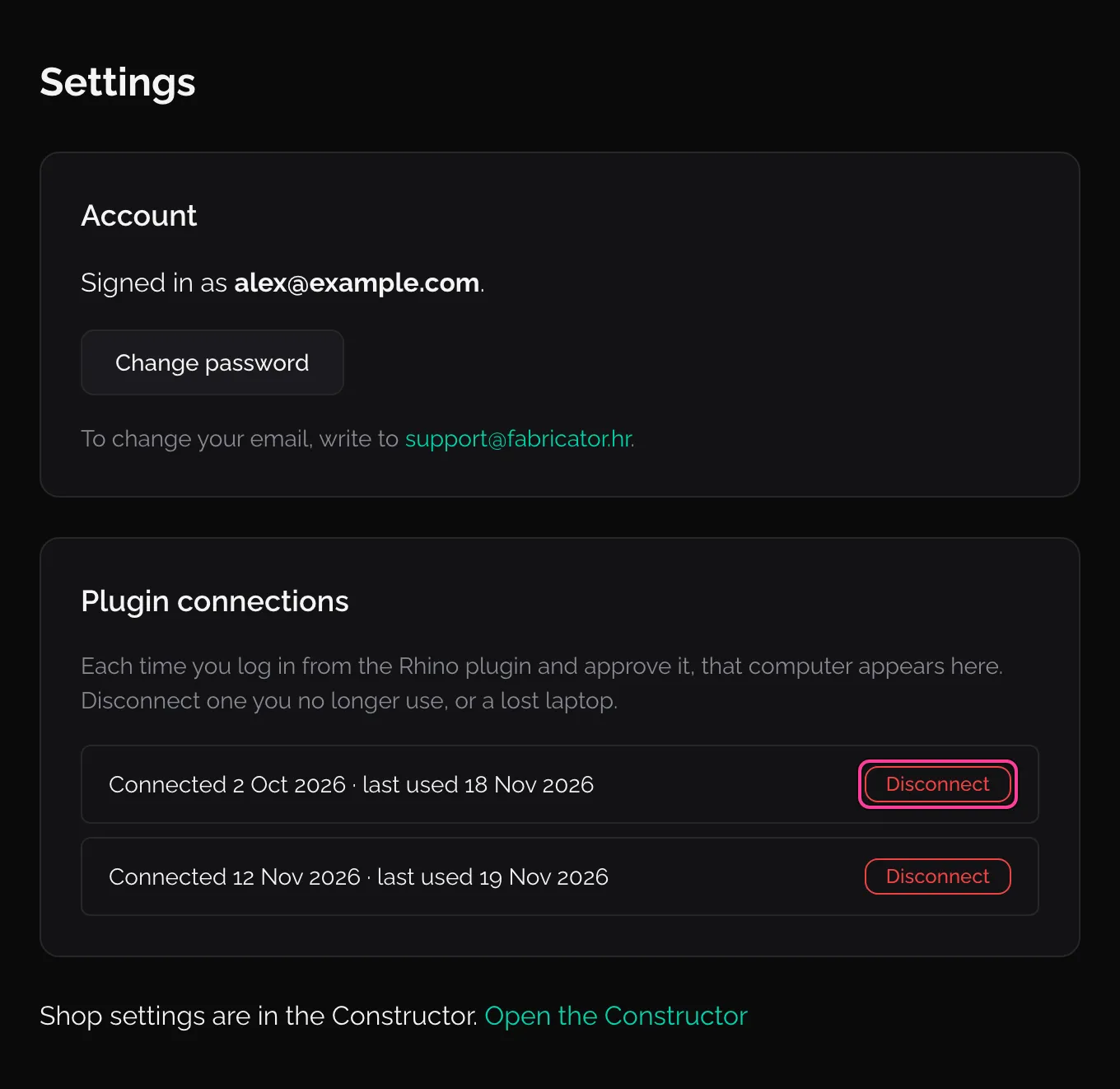
The website’s Settings page holds your account’s sign-in details and the list of computers the Rhino plugin is logged in on. Open it from the website’s sidebar.
These are not the plugin’s Settings (seam types, units, output layers and so on): those are in the Fabricator panel, under the cog. See Settings reference.
Change your password
Section titled “Change your password”-
On Settings, under Account, click Change password. The page says “We sent a link to … Open it to set a new password.”
-
Open the email and click the link. The website opens Set a new password.
-
Type the new password twice and click Update password.
The Rhino plugin stays logged in: it does not use your password after you approved it once.
Plugin connections
Section titled “Plugin connections”Each time you log in from the Rhino plugin and approve it in the browser, that computer is added to Plugin connections, with the day it was connected and the day it was last used.
To cut a computer off, for example an old or lost laptop:
-
Click Disconnect on its line.
-
Confirm: “Disconnect this computer? The plugin on it stops working until you click Log in in its Fabricator panel again.”
The line goes. On that computer the Fabricator panel says “You’ve been logged out”, with Log in; nothing in the drawings changes. Disconnecting does not sign anyone out of the website.
The lines show no computer names, only dates. If you are not sure which line is which, disconnect them all and log in again on the computers you use.
Your name
Section titled “Your name”The website has no field for your name. Change it in the Rhino plugin: open the account menu at the top of the Fabricator panel, click Edit name…, type the name (1 to 80 characters) and click Save or press Enter. The panel’s account button shows your first name.
Your email
Section titled “Your email”To change the email you sign in with, write to support@fabricator.hr and say which address you want instead. Settings says so under Account.