
Install and log in
You need Rhino 8 on Windows or Mac, and a Fabricator account. Rhino 7 and older don’t work. Installing takes a few minutes and you do it once; after that the panel tells you when there is an update.
Create an account
Section titled “Create an account”Sign up on the website, fabricator.hr. Create an account shows how.
Install the plugin
Section titled “Install the plugin”There are two ways. Both install the same plugin.
Download it from the website
Section titled “Download it from the website”-
On the website, open the Getting started page and click Download the plugin. It is one file for Windows and Mac. Its name starts with
fabricator-and ends with.yak, and your browser saves it in your Downloads folder. -
Open the file: click it in your browser’s download list, or double-click it in your Downloads folder. Rhino installs it.
If opening the file does nothing, open Rhino 8 and drag the file onto the Rhino window instead.
-
Close Rhino completely and open it again. Rhino loads new plugins only when it starts.
Or use Rhino’s Package Manager
Section titled “Or use Rhino’s Package Manager”-
In Rhino 8, type
PackageManageron the command line and press Enter. On a Mac you can also choose Tools → Package Manager. -
Type Fabricator in the search box, select Fabricator in the list and click Install. Wait until it says it is installed.
-
Close Rhino completely and open it again.
Log in
Section titled “Log in”-
Type
Fabricatoron Rhino’s command line and press Enter. The Fabricator panel opens and says Not logged in.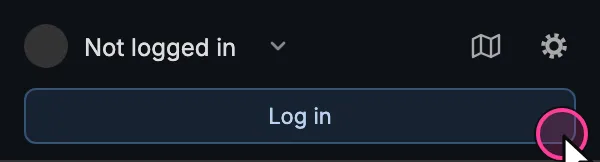
The panel before you log in. -
Click Log in. The panel shows a code, and your browser opens.
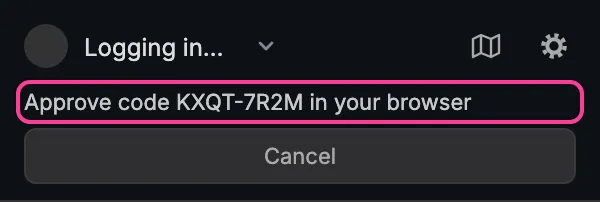
The panel shows the code to look for in the browser. -
Your browser shows a page that says Fabricator Plugin wants to connect. If it asks you to sign in first, use the account you created. Check that the code on the page is the one the panel shows, then click Approve.
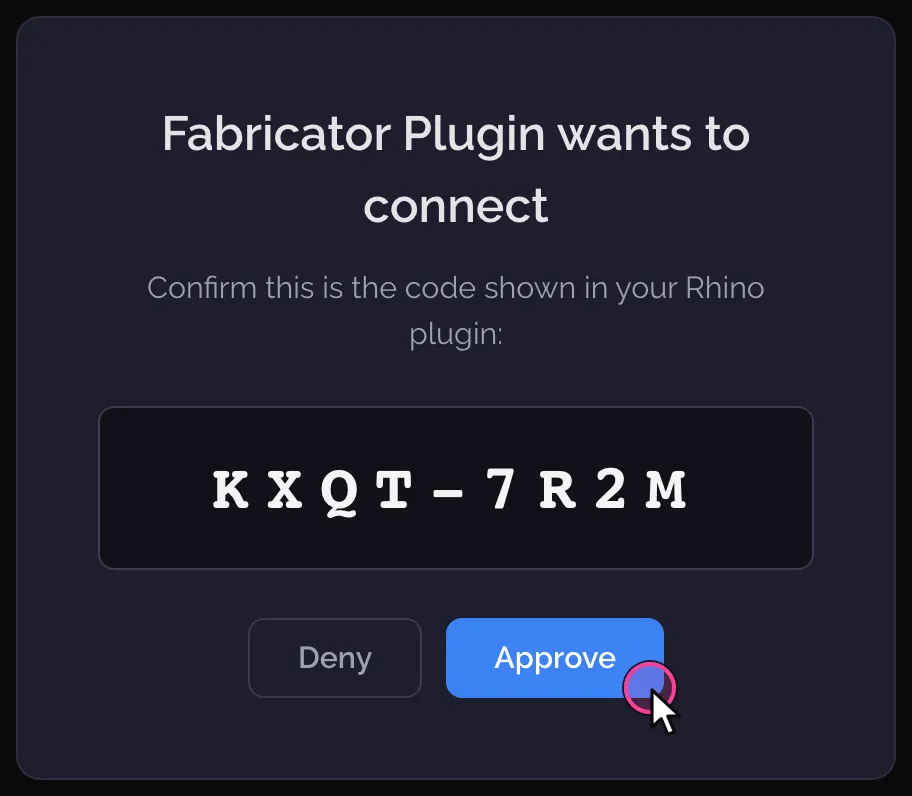
The website asks you to approve the same code. A code lasts 10 minutes. If the page says the code is no longer valid, go back to Rhino and click Log in again.
-
The page says Connected! You can close it.
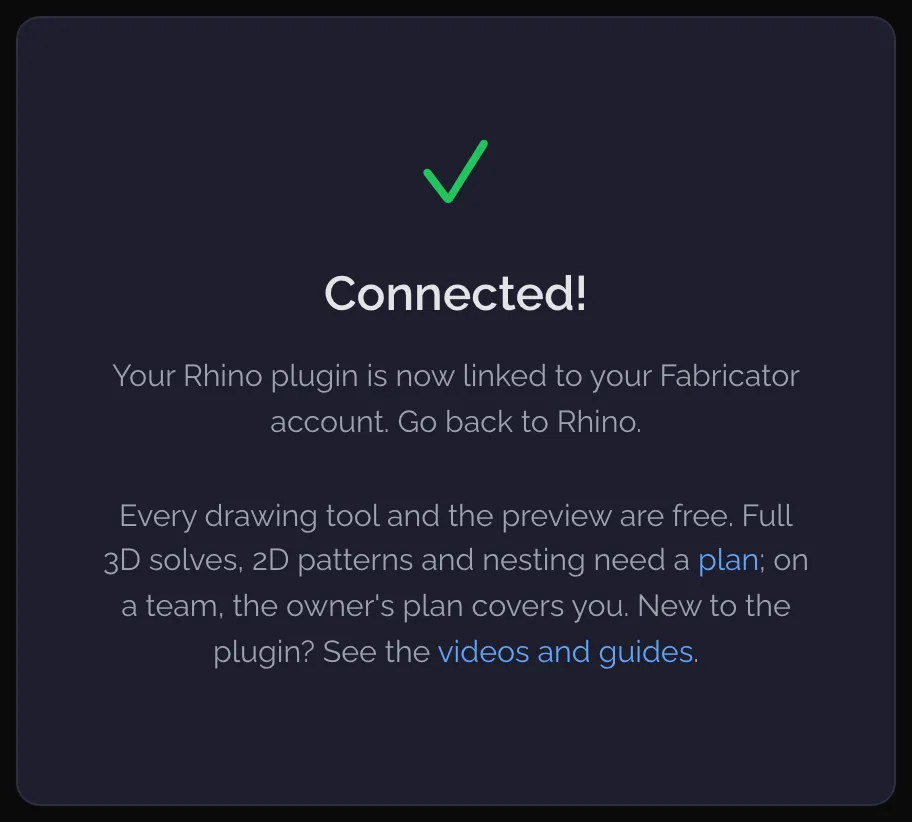
The plugin is now linked to your account. -
Back in Rhino, the panel shows your first name and your plan. There are no keys to copy.

Logged in.
To log out, click your name in the panel and choose Log out. See The Fabricator panel for the rest of that menu.
The Fabricator toolbar
Section titled “The Fabricator toolbar”Rhino also shows a small toolbar for Fabricator with three buttons. Rest the pointer on one and its tooltip says what it does.
| Button | Its tooltip | What it does |
|---|---|---|
| The F | Fabricator: bring the panel back | Brings the Fabricator panel back, from its FAB3D chip or to the front. If Fabricator is not running, it starts it. The same as typing Fabricator. |
| The map | Atlas: open it or bring it back | Opens the Atlas, or brings it back. It starts Fabricator first when needed. The same as fabricator_atlas. |
| Version and updates | Fabricator 0.2.3: check for updates (with the version you have) | Says which version is loaded and whether it is up to date, and offers to install a newer one. See Keep Fabricator up to date. The same as fabricator_updates. |
Rhino places the toolbar itself, so it is a reliable way back when you cannot find a chip, and a way to update when the panel is out of sight.
Check your setup
Section titled “Check your setup”Type fabricator_status on the command line at any time. It shows the plugin
version, whether you are logged in, and your plan (Subscription:).
Next: make your first cushion, or learn how updates work.