
Work as a team
A team is one plan shared by several people. The person who buys the plan is the owner; the people the owner invites are members. Each person has their own account, email and password, and logs in to the Rhino plugin with it. Open the Team page from the website’s sidebar, or from the Fabricator panel’s account menu (Team).
Every account starts as the owner of a team of one. You do not need to set anything up before you invite someone.
As the owner
Section titled “As the owner”Name the team
Section titled “Name the team”Type a name in the box at the top, for example your company’s, and click Save name. The name is the Team page’s title, and it is what an invited person sees.
Invite someone
Section titled “Invite someone”Fabricator does not email invitations. You send the link yourself, by email, WhatsApp or anything else.
-
Type the person’s email address in the box under the explanation and click Invite. Use the address they have, or will create, their Fabricator account with.
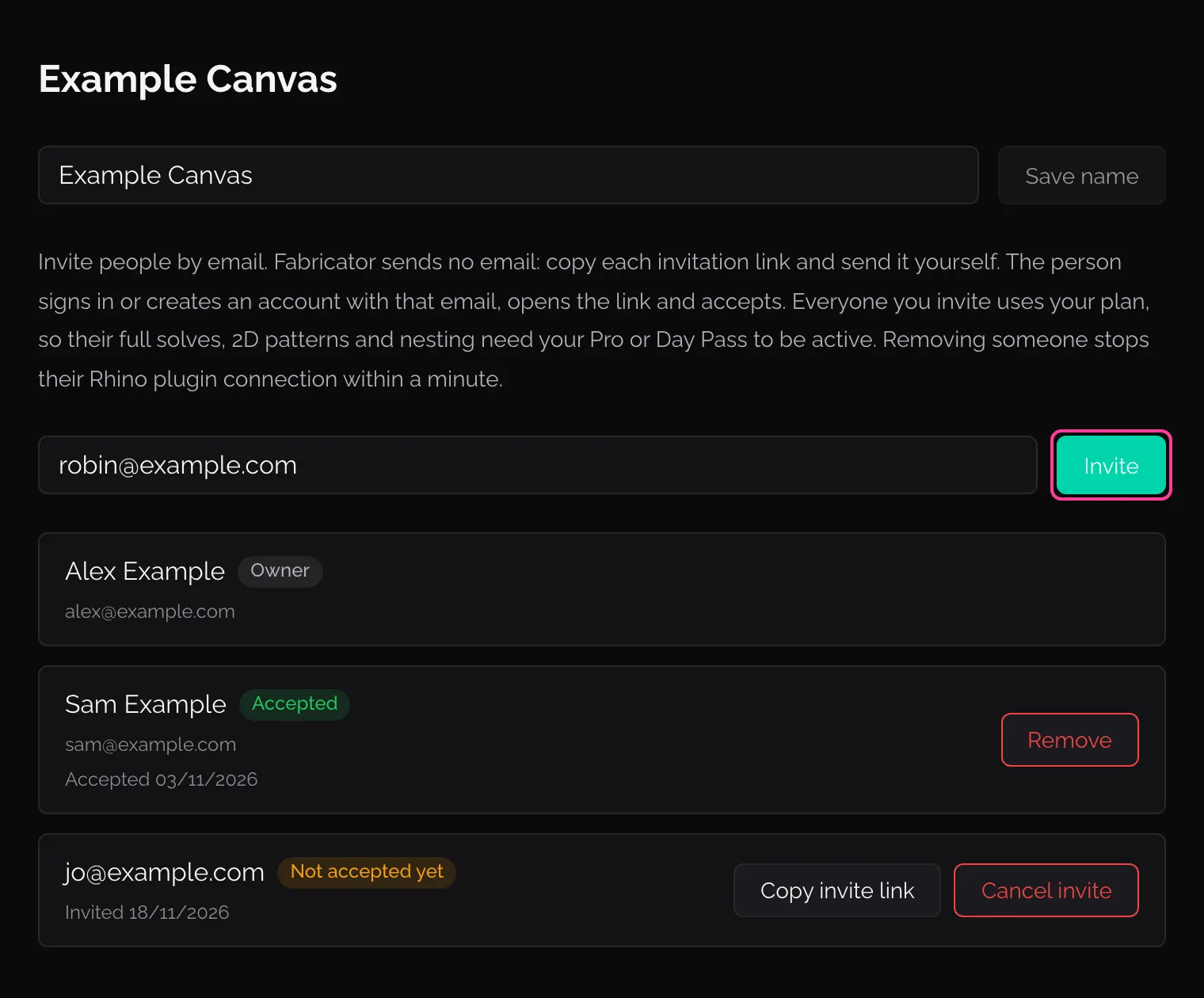
The Team page of an owner, with one member and one invitation not yet accepted. -
The invitation link appears under the box, with Copy. Copy it and send it to the person.
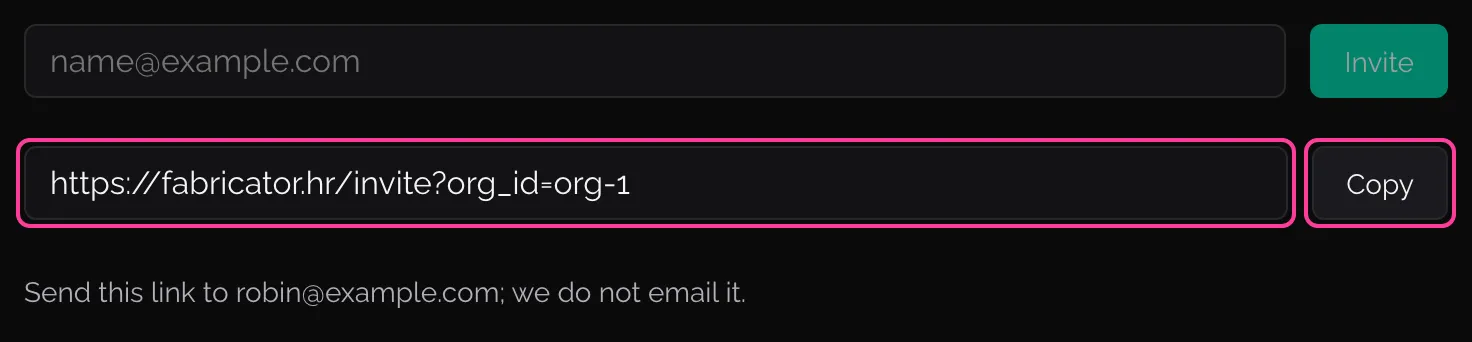
The link to send. Fabricator does not send it for you. -
The person appears in the list as Not accepted yet until they accept. Copy invite link on their row copies the link again, if they lost it.
The list
Section titled “The list”Each row is one person:
| Row says | Means | Buttons |
|---|---|---|
| Owner | You | None |
| Not accepted yet | Invited, not yet accepted. The date is when you invited them. | Copy invite link, Cancel invite |
| Accepted | A member. The date is when they accepted. | Remove |
Cancel invite takes the invitation back; the link stops working. Remove asks you to confirm, then takes the person off the team. Their Rhino plugin stops working within a minute, until they log in again; from then on they work on their own account’s plan.
As the invited person
Section titled “As the invited person”-
Open the link you were sent. The page says you are invited to a team and offers I have an account and Create an account.
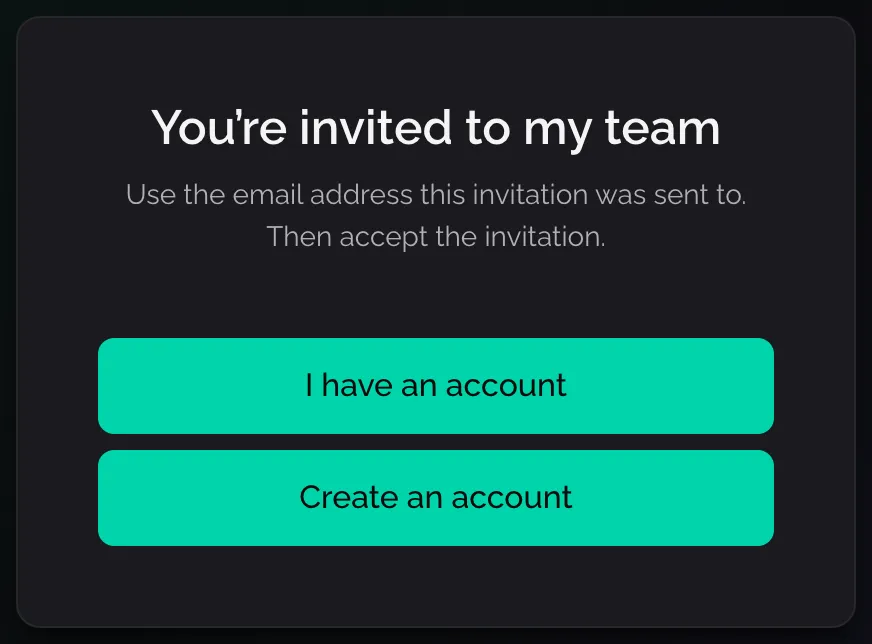
The page an invitation link opens. -
Sign in, or create an account, with the email address the invitation was sent to.
-
The Join a team page names the team and the email you are signed in with. Click Accept invitation.
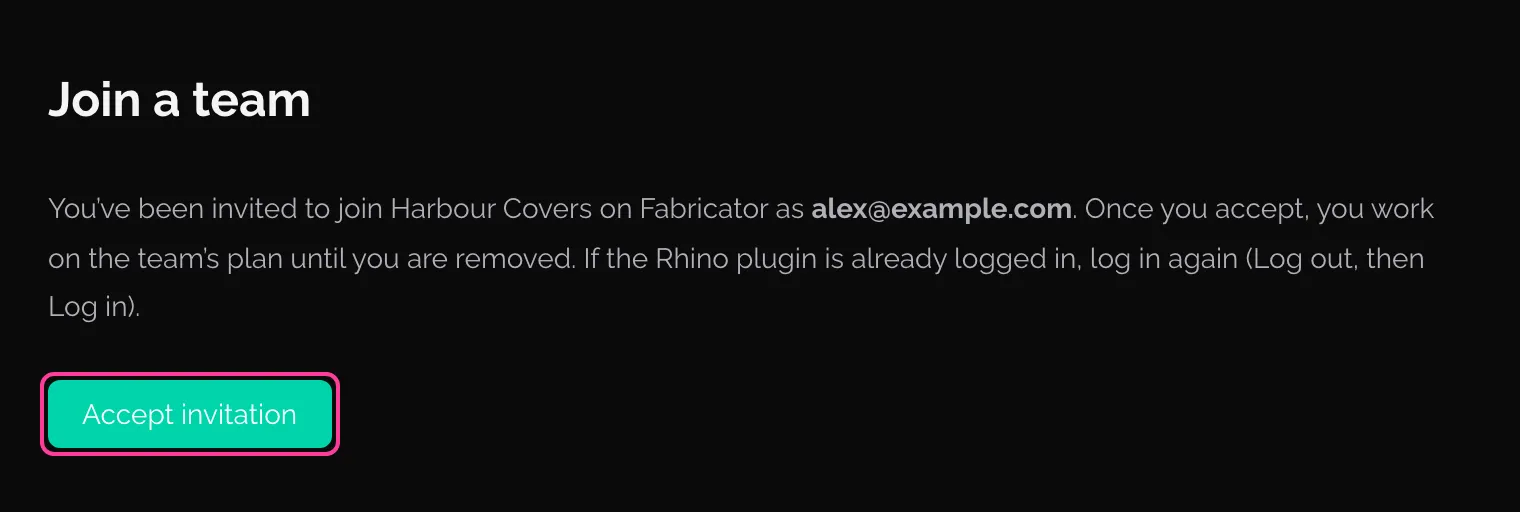
Accept the invitation. -
The Team page opens and shows the team. If the Rhino plugin was already logged in, log out and log in again in the panel’s account menu, so that it works on the team’s plan.
An invitation also shows on the website’s Home, with Accept and Decline, while you are signed in with the invited email.
If accepting is refused, the page says why:
| What the page says | What to do |
|---|---|
| “There is no invitation for this account (…)” | You are signed in with another email. Click Sign in with another account and use the invited one, or ask for a new invitation. |
| “Your account pays for its own plan (a subscription or Day Pass), so it can’t join a team. …” | Cancel your own plan on Billing and wait until it has ended, or ask to be invited at another email address. |
| “Your account has team members of its own, so it can’t join another team. …” | Remove your own members on your Team page first, then accept again. |
| “Your account has sent invitations of its own, so it can’t join another team. …” | Cancel those invitations on your Team page first, then accept again. |
| “Your account is already in another team. …” | Ask that team’s owner to remove you, then accept again. |
As a member
Section titled “As a member”Your Team page names the team and its owner, and the day you joined.
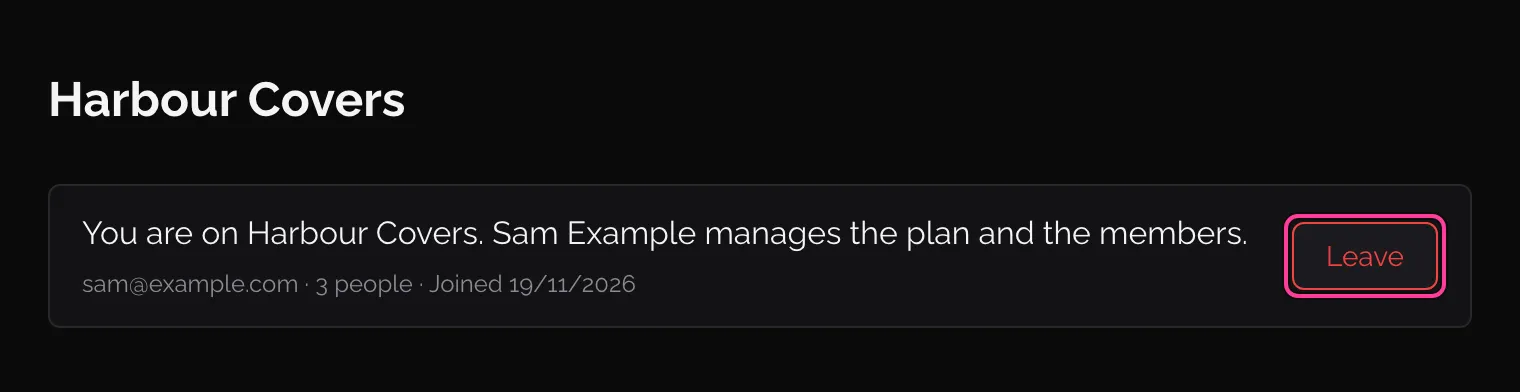
You buy nothing. Your Billing page says that you use the team’s plan and that the owner manages it; the website’s sidebar shows Team plan, or No team plan when the owner has none.
To leave, click Leave and confirm. Your Rhino plugin stops working until you log in again in the panel; from then on it works on your own account.
How a plan covers a team
Section titled “How a plan covers a team”The owner’s plan covers the team: full 3D solves, 2D patterns and nesting work for members while the owner’s Pro or Day Pass is active. When the owner has no plan, members keep every tool and the preview, as on a free account.
Teams with paid seats
Section titled “Teams with paid seats”Fabricator can also count seats: the plan’s first seat is the owner’s, and each other person on the team needs a paid seat of their own. Whether this applies to your team shows on its pages: when seats count, the owner’s Team page says how many seats are used (“2 of 3 seats used. Each person needs a paid seat.”), each member’s row says Has a seat or No seat: tools and preview only, and Billing has a Seats box. When none of this shows, your team has no seats to buy.
Where seats count:
- Who needs one: every person on the team except the owner.
- How they are bought: the owner sets the number in Seats on Billing (1 with Pro, each extra seat €149 a month without VAT) and clicks Buy and pay now; added seats are charged at once for the rest of the month (or of the trial). For a Day Pass, the People box on the Day Pass button buys the pass for several people, €45 each without VAT. Removing seats refunds nothing. Give seat and Take seat away on the Team page decide who has one.
- A member without a seat keeps every tool and the preview, but not full solves, 2D patterns or nesting. Their solve is refused with “Your team has no paid seat for you, so full solves, 2D patterns and nesting are off. Every tool and the preview still work.” When seats are first counted, the owner’s Team page may give a date to buy them by; until then, people without a seat keep full solves, 2D patterns and nesting.
- When seats run out: inviting or accepting someone when every paid seat is taken is refused until the owner buys another seat or removes someone. An invitation not yet accepted holds a seat too.