
2. Open the Atlas
As soon as there is a wireframe, open the Atlas. From then on it shows your panels flat, live, while you keep drawing in Rhino. Most of the work after the wireframe happens here.
Open it
Section titled “Open it”-
Open the Atlas in any of these ways:
- click the FAB2D chip;
- click the map button beside the cog at the top of the Fabricator panel (its hover text is Open Atlas);
- click the map button on Fabricator’s Rhino toolbar, or type
fabricator_atlas.
The Atlas opens and shows each panel of the wireframe flat, with its number.
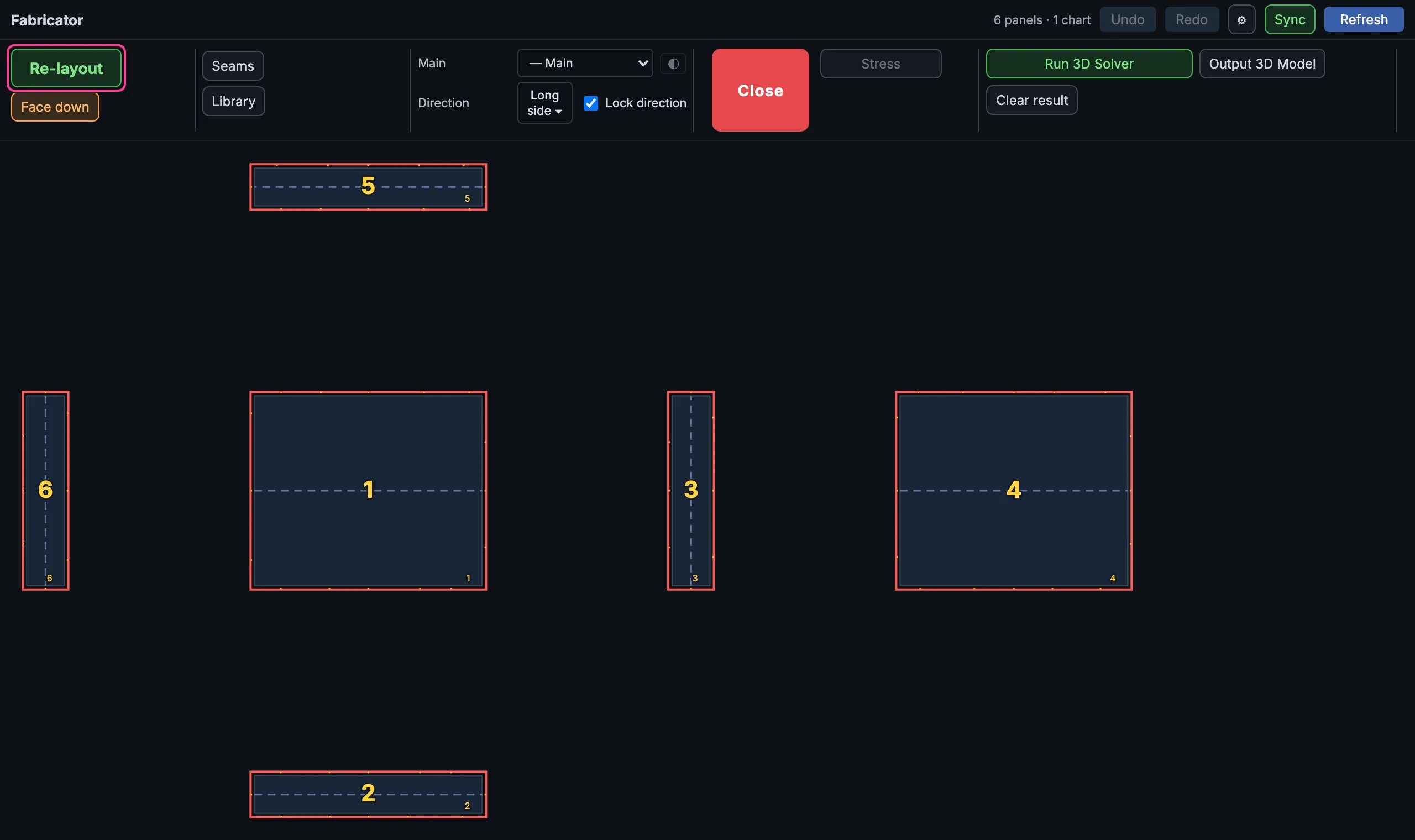
The Atlas just opened on the box cushion. Re-layout is at the top left. -
If the panels look scrambled, press Re-layout. New panels often make no sense until you do. This is normal, not an error.
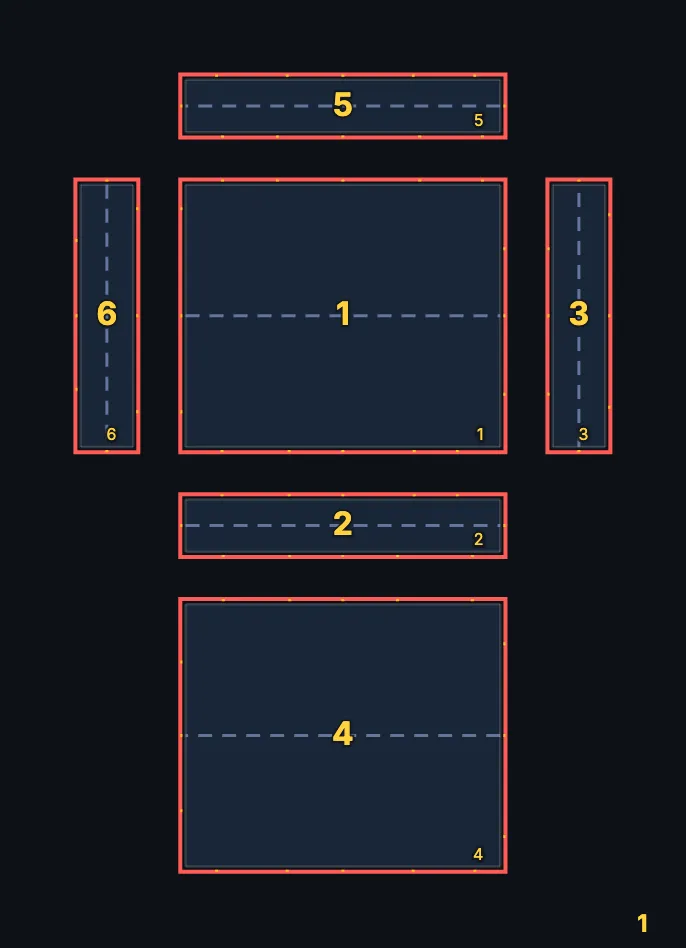
The cushion after Re-layout: the top in the middle, the sides around it. -
Arrange things the way you like to read them: drag panels, or select them and turn them with the round handle just off their top-right corner (Shift turns in 15° steps), or let Re-layout do it.
What to know
Section titled “What to know”- It follows Rhino. Draw, move or split a curve in Rhino and the panels in the Atlas change with it. While they are worked out, a line at the foot of the map says so (see below).
- Re-layout replaces your arrangement. It lays out the selected cards again, or the whole map when no card is selected. If you don’t like the result, press Ctrl+Z: one Undo takes it back.
- Cards stay apart. Each wireframe is a card. Re-layout keeps a clear gap between cards; Card gap, in the drop-down of the Output column, sets how much. Gap, beside it, sets the room between the panels of one wireframe.
- Close only parks it. The red Close button, in the middle of the toolbar, puts the Atlas away on the FAB2D chip. Click the chip and you are back where you were. The map button in the Fabricator panel does the same while the Atlas is on screen: its hover text then reads Close Atlas.
- The Atlas has its own Undo. Undo and Redo in its header (Ctrl+Z, Ctrl+Y) step through the Atlas’s own changes and never run Rhino’s Undo. A change you make to the drawing in Rhino clears the Atlas history.
- Refresh reads the drawing from Rhino again. Use it if the Atlas and Rhino seem out of step. Sync calculates the map and the fabrication again from scratch.


Face up or face down
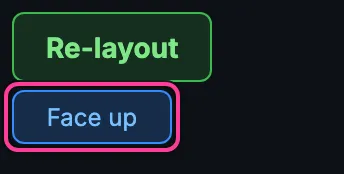
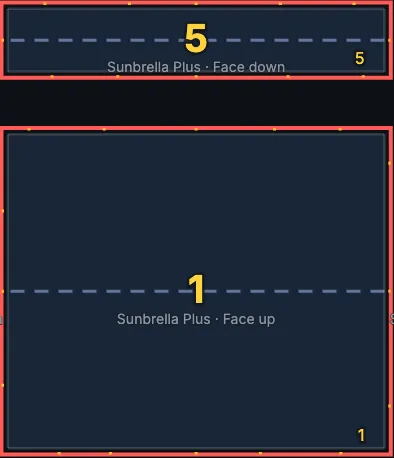
Section titled “Face up or face down”The Atlas can show the panels from either side of the material, to suit how you cut and mark. The button under Re-layout says which side you are looking at: Face down (orange, the default) means the outer side of the material is turned down, so you see the inner side; Face up (blue) means you see the outer side. Click it to turn the whole page over.
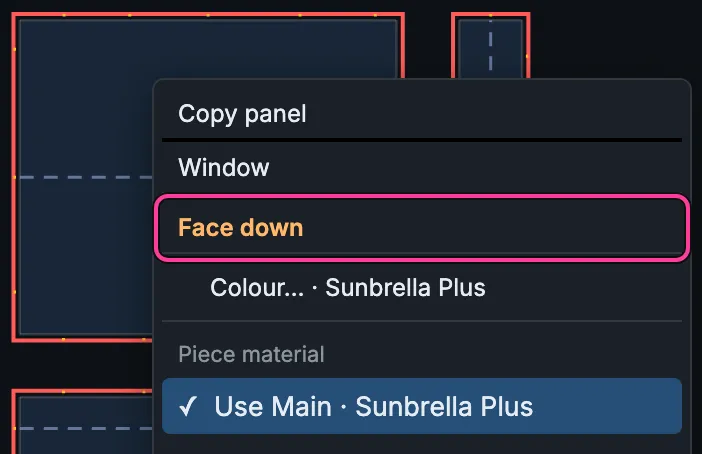
To turn one panel over on its own, right-click it. The menu starts with Copy panel and Window; the next row, in orange, says which way that panel lies, Face up or Face down. Click it to turn the panel over; the menu stays open. With several panels selected that lie different ways, the row reads Flip panels.
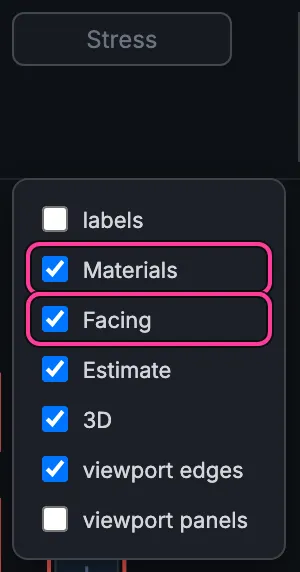
Show → Facing writes each piece’s side small under its number, and Show → Materials its material.
Lines at the foot of the map
Section titled “Lines at the foot of the map”While the Atlas works something out, a short line appears at the bottom left of the map:
| Line | What it means |
|---|---|
| Calculating… N panels pending | The map is being worked out again after a change. Pending panels show a small spinner where their number goes. |
| N panels pending — the server map was not updated: … | The map could not be worked out; the reason follows. |
| Waiting for the server map. | The drawing has arrived and its first map is on its way. |
| A seam edit is waiting for the map to update; it is made when the map has. | A seam type you gave waits for the map; nothing to do. |
| Fabrication out of date — recalculate | The cut lines no longer match the panels and the automatic recalculation has stopped. Press Sync. |
Other messages from the Atlas, such as a cut or a join it refused, are not
shown over the map. They appear on Rhino’s command line, starting with
[Fabricator] Atlas JS:.
Red and white outlines
Section titled “Red and white outlines”A panel outlined in red is a preview: its flat shape is worked out from the wireframe without a 3D solve. After a 3D solve, a solved panel is outlined in white. A panel that the last solve no longer fits, because the drawing changed since, goes back to red. For many projects the red preview is all you need: see Solve in 3D.