
Buy and manage a plan
You buy a plan on the website’s Billing page. Open it from the website’s sidebar, or from the Fabricator panel’s account menu: Plan & billing opens it in your browser. Plans says what each plan gives you.
On a team, only the owner sees plans and prices here. A member’s Billing page says whose plan they use and that they have nothing to buy.
Buy a plan
Section titled “Buy a plan”-
Choose the plan. On the Billing page, Choose a plan offers two buttons: Day Pass — €45 and Pro monthly — €149/mo. The pricing page’s Buy Day Pass and Start 14-day trial lead to the same place.
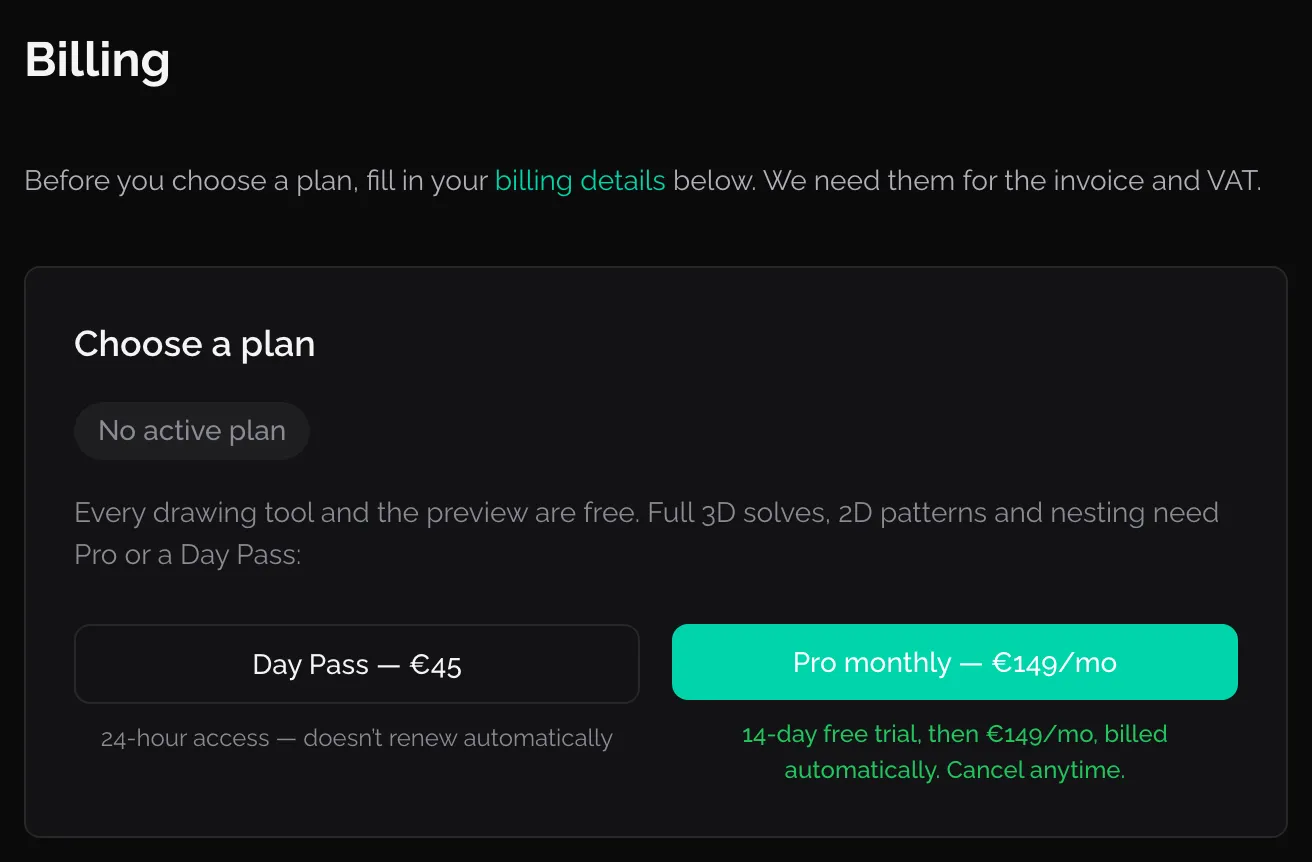
Billing with no plan yet. The prices are without VAT until your business details are saved. If you came from the pricing page, Billing says You chose Pro (or Day Pass) instead, with the price. Choose a different plan brings back the two buttons.
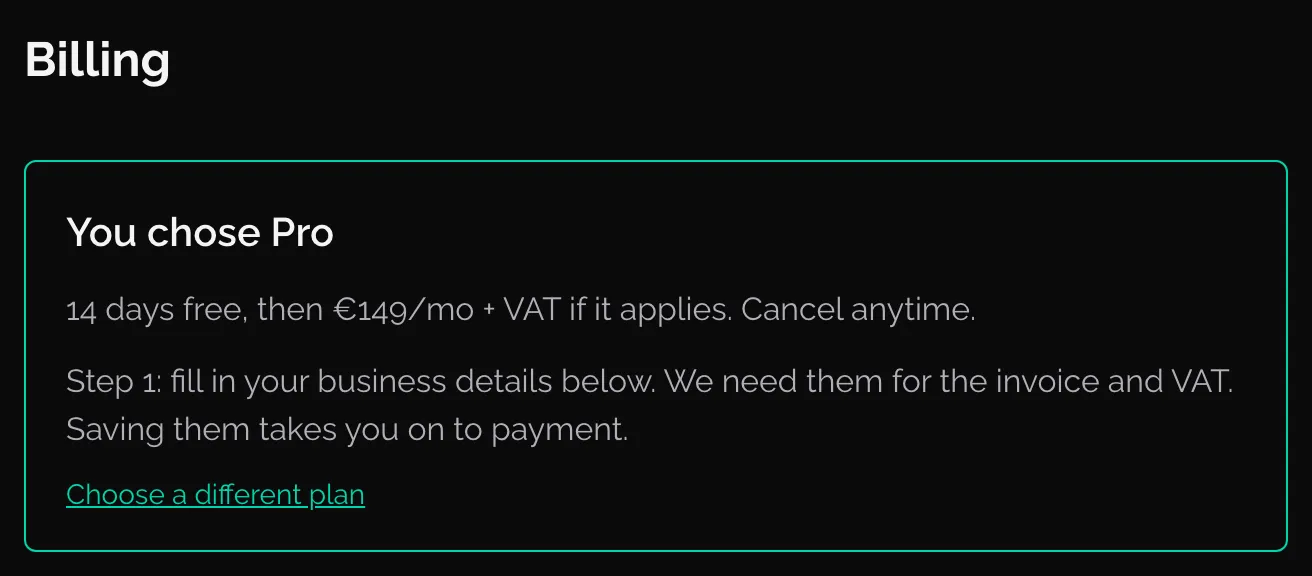
A plan chosen on the pricing page: the business details come first. -
Fill in Business details below the plan. Every payment gets an invoice, and the invoice needs your name and address and decides the VAT, so the website asks for them before it takes you to payment.
- Tick I’m not a business — this is a personal subscription. if you are buying for yourself. Legal name then reads Full name, and there is no tax ID.
- Billing country, then the tax ID for that country, if you have one. An EU VAT number is checked with the EU’s register (VIES), a UK one with HMRC. Tick My business is not VAT-registered. if it is not.
- Billing address, City and Postal code.
- Contact name and Billing email are optional.
- Tick the declaration that the details are right.
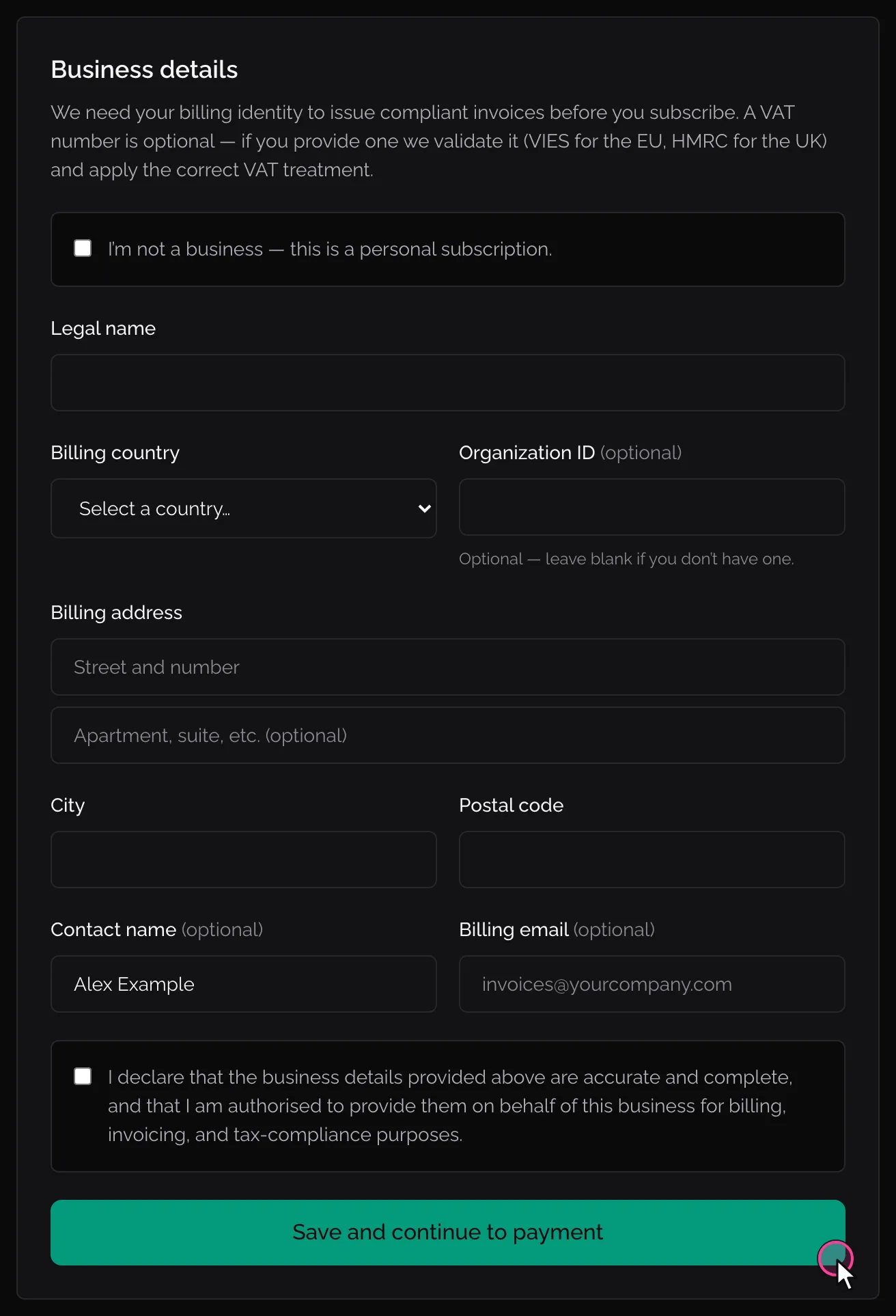
The business details. With a plan chosen, the button saves and goes on to payment. -
Click Save and continue to payment. (Without a plan chosen, the button is Save business details, and the details stay on file for later.)
If the VAT number cannot be confirmed, the form says so above the button and offers to go on without the reverse charge, for example Continue without reverse charge (25% VAT). You can also correct the number and save again. The number is kept on your invoice either way.
-
The website takes you to Stripe’s payment page. Stripe is the payment service; Fabricator never sees your card. The page shows the plan, the price and your business details as you saved them. Type your card details and pay. For Pro, the card is charged when the 14-day trial ends, not now.
To stop, use the back link at the top of Stripe’s page. You return to Billing with “Checkout was canceled. You can try again anytime.” Nothing was charged.
-
After paying you return to Billing. It says “Payment received. Turning on your plan…” for a moment, then that the plan is active.
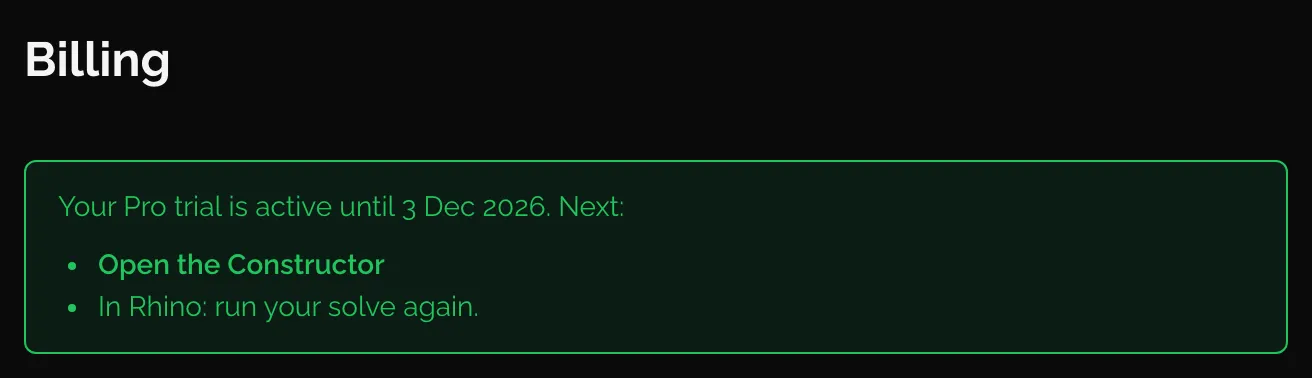
Back from Stripe after starting Pro: the trial is on. If it takes longer than usual, the page says so and points you to support. The payment went through either way.
-
Back in Rhino, run your solve again.
Your plan
Section titled “Your plan”Once you have a plan, Billing shows Your Plan, which changes with the state of the plan.
Pro trial
Section titled “Pro trial”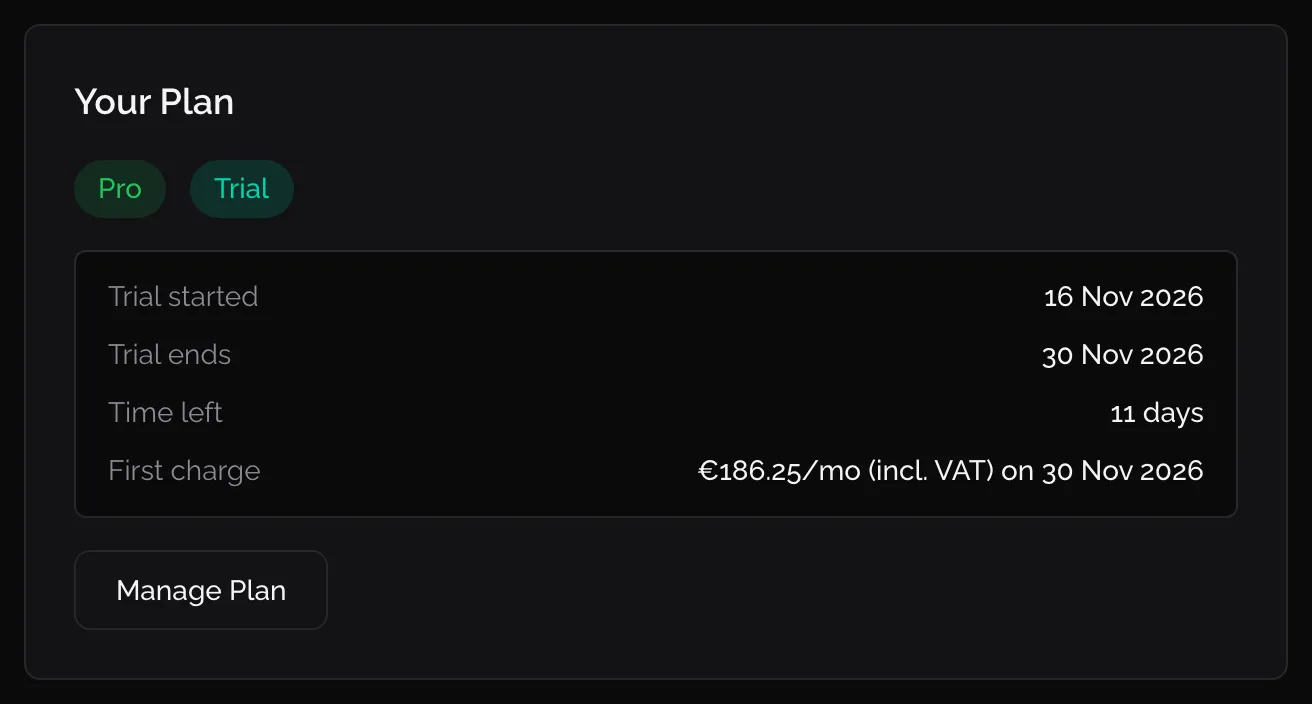
The trial runs 14 days. First charge says what the card is charged when the trial ends, VAT included where it applies. To end the trial without paying, click Manage Plan and cancel on Stripe’s page before the trial ends.
Pro, paid
Section titled “Pro, paid”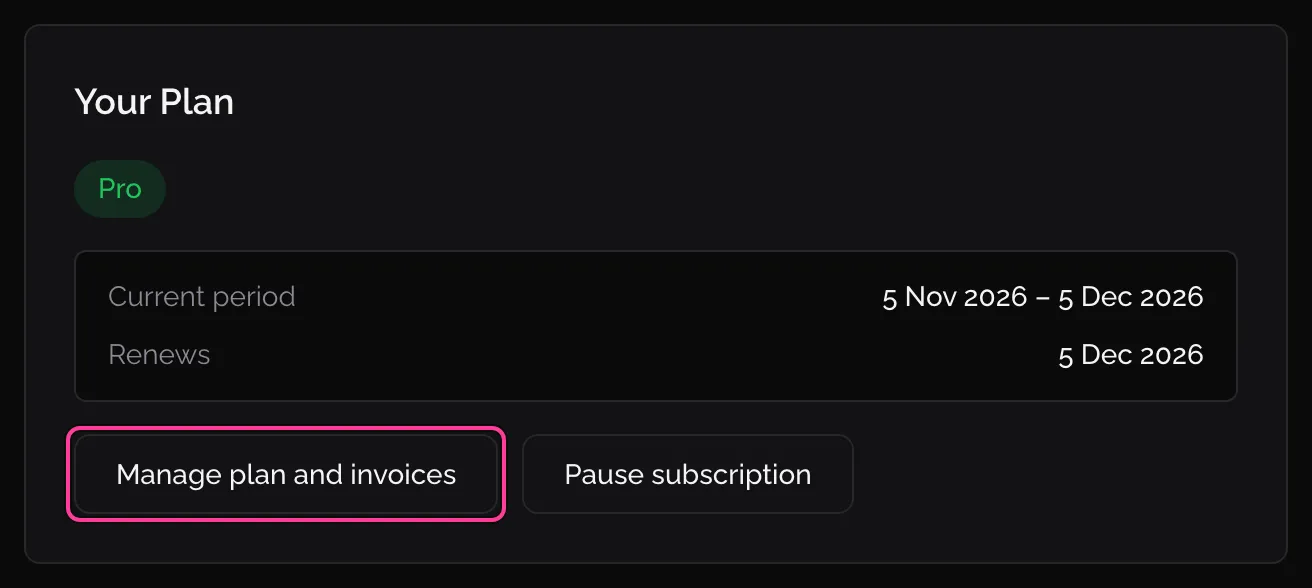
- Renews is the day of the next monthly charge.
- Manage plan and invoices opens Stripe’s page for your subscription: change the card, see and download your invoices, or cancel. A cancellation takes effect at the end of the month you paid for.
- Pause subscription stops the charges for a while, see below.
Pause and resume
Section titled “Pause and resume”Pause subscription asks you to confirm, then:
- your access continues until the end of the month you already paid for, then stops;
- you are not charged while paused;
- if you do not resume within 3 months, the subscription is canceled, and coming back means subscribing again at the price of that time.
You can pause only a paid Pro subscription: not during the trial, not with a failed payment outstanding, and not one that is already paused. Otherwise the page says “This subscription can’t be paused right now”. A team with extra seats cannot pause either: the page says “Remove the extra seats before pausing”; set the seats back to 1 first.
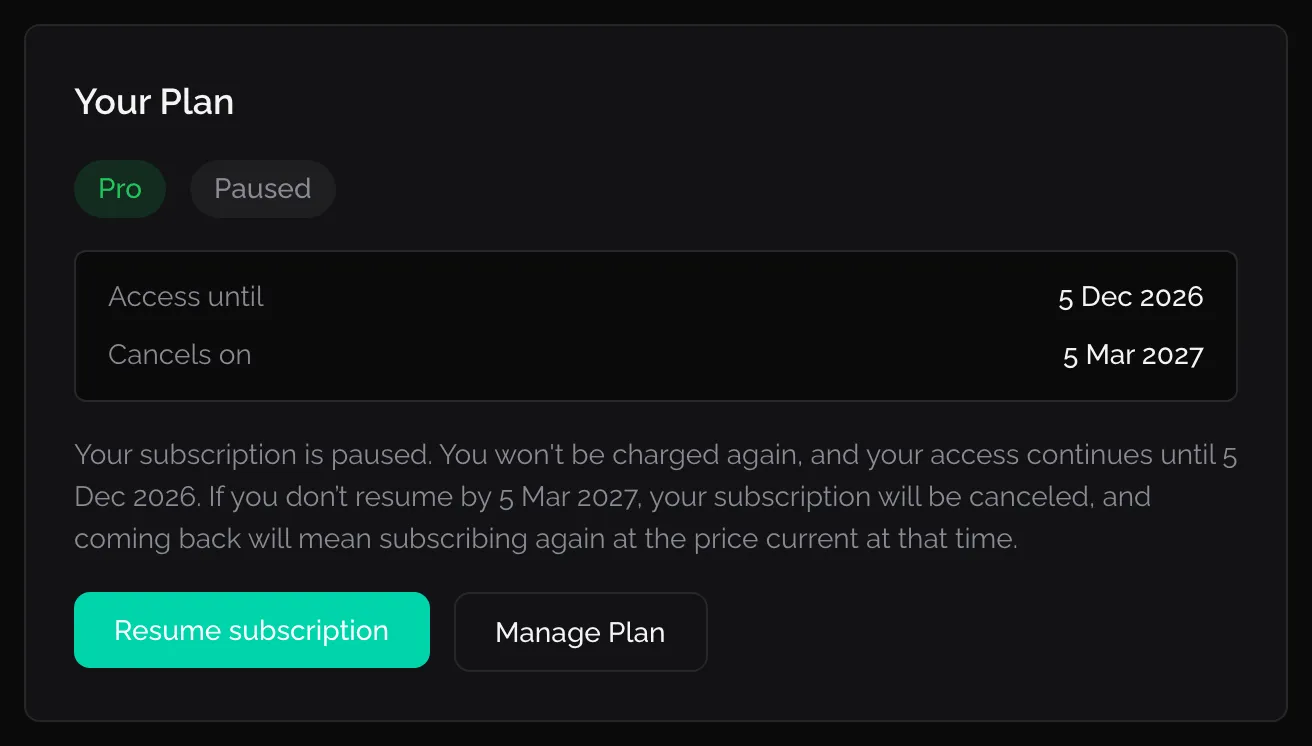
Resume subscription before the access date ends the pause and charges nothing. After that date you are on the free tools; resuming starts a new paid month and is charged at once: the button reads Resume — pay €… now. When the website cannot take that payment, the button reads Resume — contact us: write to support and we restore it for you.
Day Pass
Section titled “Day Pass”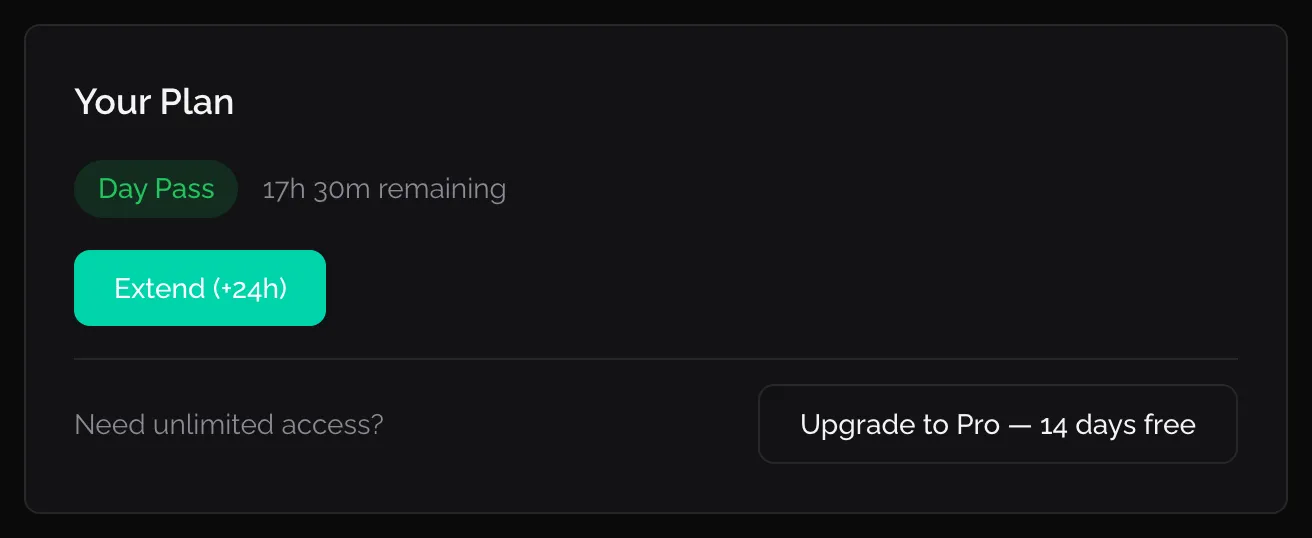
The badge counts down the time left. A Day Pass does not renew: when the time is up you are back on the free account. Extend (+24h) buys another 24 hours on top of the time left; a pass holds 48 hours at most. Upgrade to Pro — 14 days free starts Pro.
Canceled
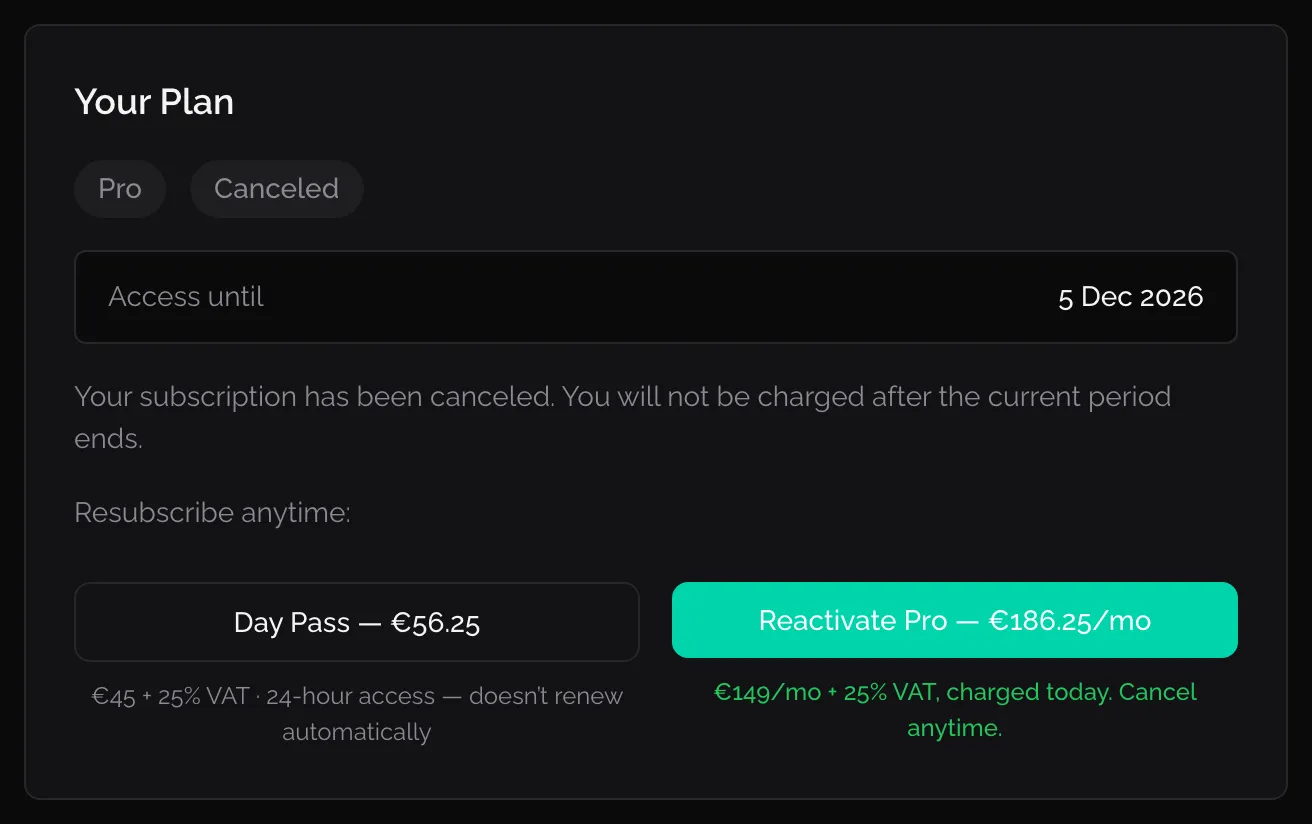
Section titled “Canceled”The page says “Your subscription has been canceled. You will not be charged after the current period ends.”, with Access until. Below it, Resubscribe anytime: offers a Day Pass or Reactivate Pro. Reactivating Pro is charged at once; there is no second trial.
Payment failed
Section titled “Payment failed”When a monthly payment fails, a banner says “Your renewal payment failed.” and gives the date by which to fix it; your access continues until then. Home says “Your payment failed: fix it on Billing”.
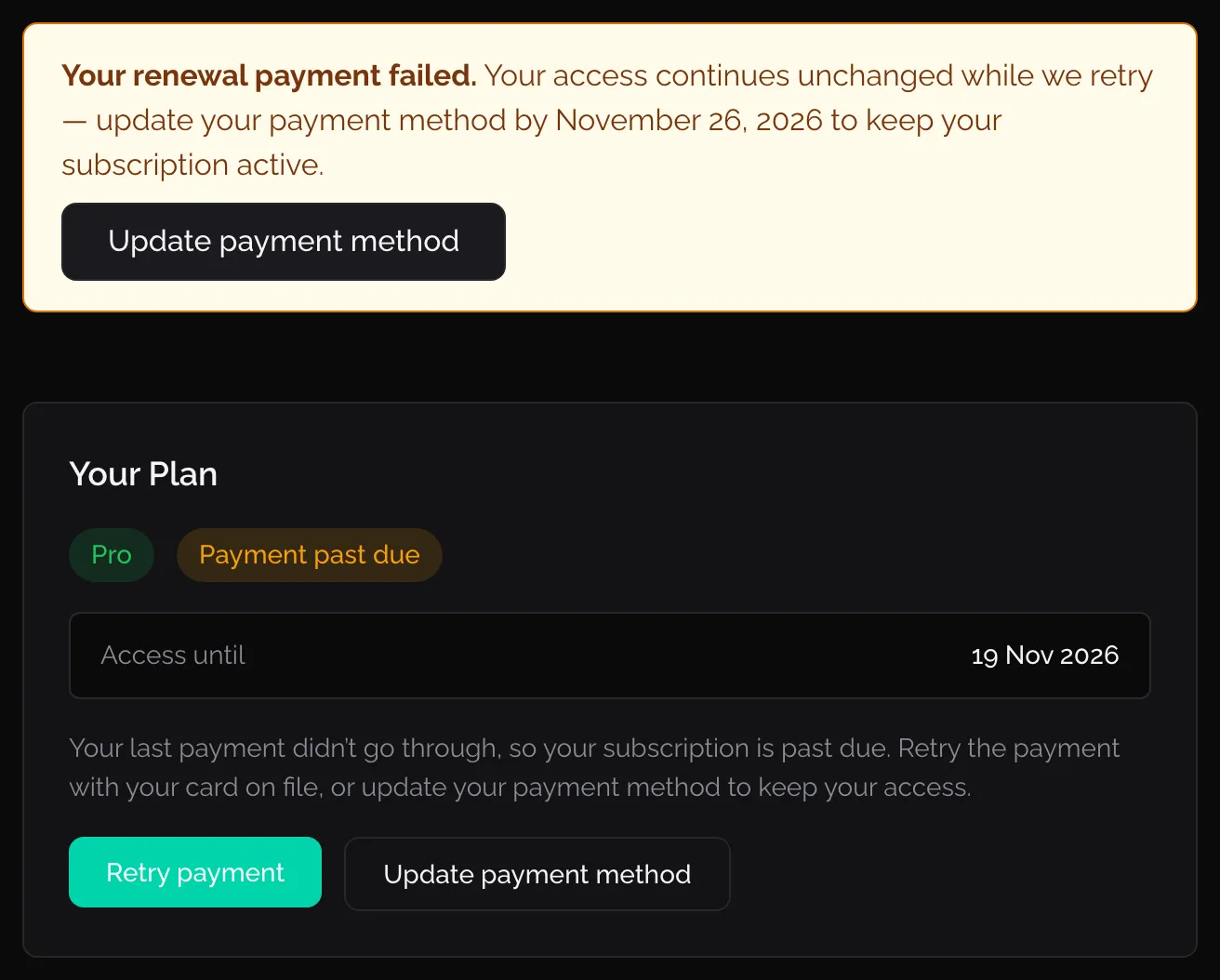
- Retry payment charges the card on file again.
- Update payment method opens Stripe’s page, where you add a new card.
If the date passes without a payment, the banner says the subscription is paused until you update the payment method.
Invoices
Section titled “Invoices”Every payment is invoiced: each Pro month and each Day Pass. On Pro, click Manage plan and invoices (or Manage Plan) on Billing; Stripe’s page lists your payments and their invoices, to view or download. A Day Pass on its own shows neither button: ask support for its invoice.
Invoices are made out to the business details you saved. To change them, edit Business details on Billing and click Save business details. A paid plan with incomplete details shows “Your next invoice can’t be issued until you complete your business details below.”, and Home shows the same reminder.
VAT in plain words
Section titled “VAT in plain words”Fabricator is a Croatian company, so its prices carry Croatian VAT (25%) unless the law says otherwise. What you pay depends on where you are and who you are:
| You are | VAT on your invoice |
|---|---|
| In Croatia, business or private | 25% |
| A business in another EU country, with a VAT number the EU register confirms | None: the reverse charge applies, and you account for VAT yourself |
| A business in another EU country without a confirmed VAT number, or a private person there | 25% |
| In the United Kingdom | None |
| Outside the EU and the UK | None |
The Billing page shows prices with VAT once it knows which line is yours, that is after you save your business details.