
Get help
When something goes wrong, look first in If something goes wrong and in Messages. When that does not help, write to us. The quickest way is from Rhino, because the plugin sends what we need to find the problem along with your words.
From Rhino: Report a problem
Section titled “From Rhino: Report a problem”-
Click the account button at the top of the Fabricator panel, then Report a problem…. It is there whether you are logged in or not.
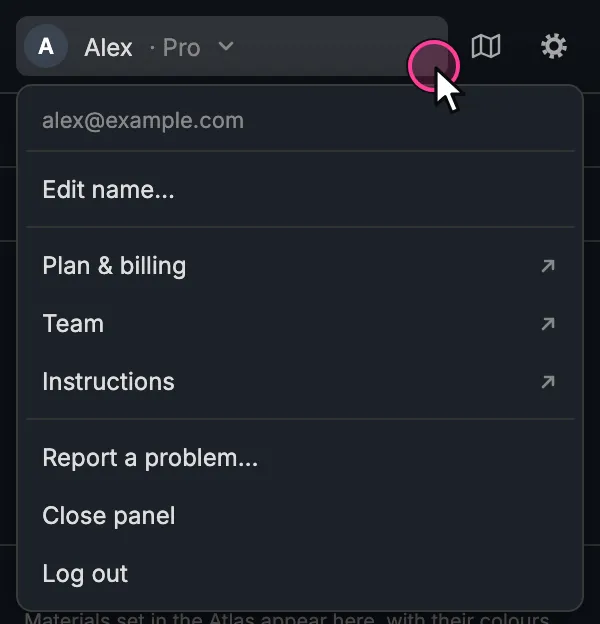
The account menu of the Fabricator panel. -
Under What went wrong?, write what you did, what you expected and what happened instead. Name the panel or the edge if it is about one.
-
Tick Include this drawing (.3dm) if the problem is in this drawing. It is almost always worth it: we can open the drawing and see the problem for ourselves. The drawing is private; only Fabricator support opens it. The box is clear each time you open the form.
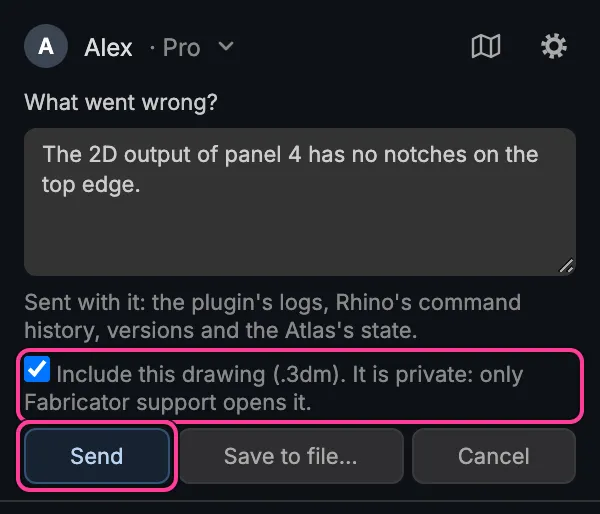
Report a problem, with the drawing ticked. -
Click Send. The form says “Sent. We’ll reply by email.” The reply goes to your account’s email address.
Sent with your message, as the form says: the plugin’s logs, Rhino’s command history, the versions of the plugin and Rhino, and the state of the Atlas. Your login key is left out.
Save to file instead
Section titled “Save to file instead”Save to file… writes the same message and diagnostics into a .zip file on your computer, with the drawing if you ticked it. Email that file to support@fabricator.hr. Use it when:
- you are not logged in: Send then says “Log in to send it. Use Save to file and email the file to support@fabricator.hr.”;
- the report is too large: “It is over 25 MB, too large to send. Use Save to file…” (a large drawing does this);
- the plugin cannot reach Fabricator.
If Send asks you to verify your email
Section titled “If Send asks you to verify your email”Sending a report needs a confirmed email address. If yours is not confirmed, the form says so and shows Verify email, which opens the website’s Confirm your email page. Type the code we email you there, then click Send again; your text is kept.
From the website: Contact support
Section titled “From the website: Contact support”Open Contact support in the website’s sidebar. It needs you signed in with a confirmed email; otherwise the website asks for the code from the email first.
Your name and email are filled in. Type a Subject and, under How can we help?, your message, pass the security check, and click Send message. “Your message has been submitted. We will reply to your verified account email.” means it went. Do not put passwords or card details in a message.
If the page says “The support form is currently unavailable. Please message us on WhatsApp below.”, use one of the ways below.
WhatsApp and email
Section titled “WhatsApp and email”Under the form, and wherever the website gives a contact:
- WhatsApp: the link Chat with us on WhatsApp on the Contact support page, wa.me/385916044575.
- Email: support@fabricator.hr. This works without an account.
The Debug button
Section titled “The Debug button”Debug, at the foot of the Fabricator panel, copies technical details to the clipboard: the last runs, the server address, a shortened form of your login key and a summary of the drawing. The panel’s status bar says “Debug info copied to clipboard”. Paste it into an email when support asks for it. Report a problem… sends more than this, without the key, so prefer it.
What to put in a message
Section titled “What to put in a message”- What you did, step by step, and what you expected.
- What happened instead, with any message word for word. Messages from the
Atlas are on Rhino’s command line, in lines that start with
[Fabricator]. A line that startssupport:carries a reference we can look up: copy it. - The drawing (.3dm), or tick Include this drawing.
- A screenshot if the problem is something you see.
Videos and guides
Section titled “Videos and guides”The website’s Videos and guides page (in the sidebar, or Instructions in the panel’s account menu) has the Seam profile guide and seven videos:
- Fabricator installation and first run
- Fabricator Wireframe part 1 — Concept, Fixed edge, Excluded
- Fabricator Wireframe part 2 — Cable, Seam, Join
- Wireframe part 3 - Real model + Assist lines
- Wireframe part 4 - Putting it all together
- Fabricator Workflow overview
- Creating your Seam Profile in Fabricator
The page needs you signed in.